Bucket Administration: Configure Workflows
Workflows are the way RedEye automates your business process to take an artefact from one revision to the next. All of the activities involved in this process are represented by individual steps in each workflow. RedEye uses Workflow steps to automate notifications and facilitate access control. Which means you can use workflows to ensure that your business processes are adhered to, while simultaneously notifying users of New or Outstanding tasks for them to complete.
Workflows are uniquely configured for your organisation at onboarding, and are system critical. For these reasons, we do not recommend that you change Step Properties, etc. Instead, contact RedEye support for assistance. However, you can change User Permissions and Notifications.
You can easily configure which Users have Permissions to perform actions on a workflow step, and configure what Notifications, Reminders or Escalations will be sent out on that step.
To configure these Permissions and Notifications, start by accessing the Workflow from the Bucket Administration tools.
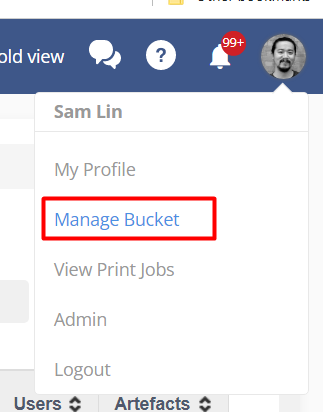
To access Bucket Administration tools, you can access Manage Bucket page via the profile icon on the top right of the interface
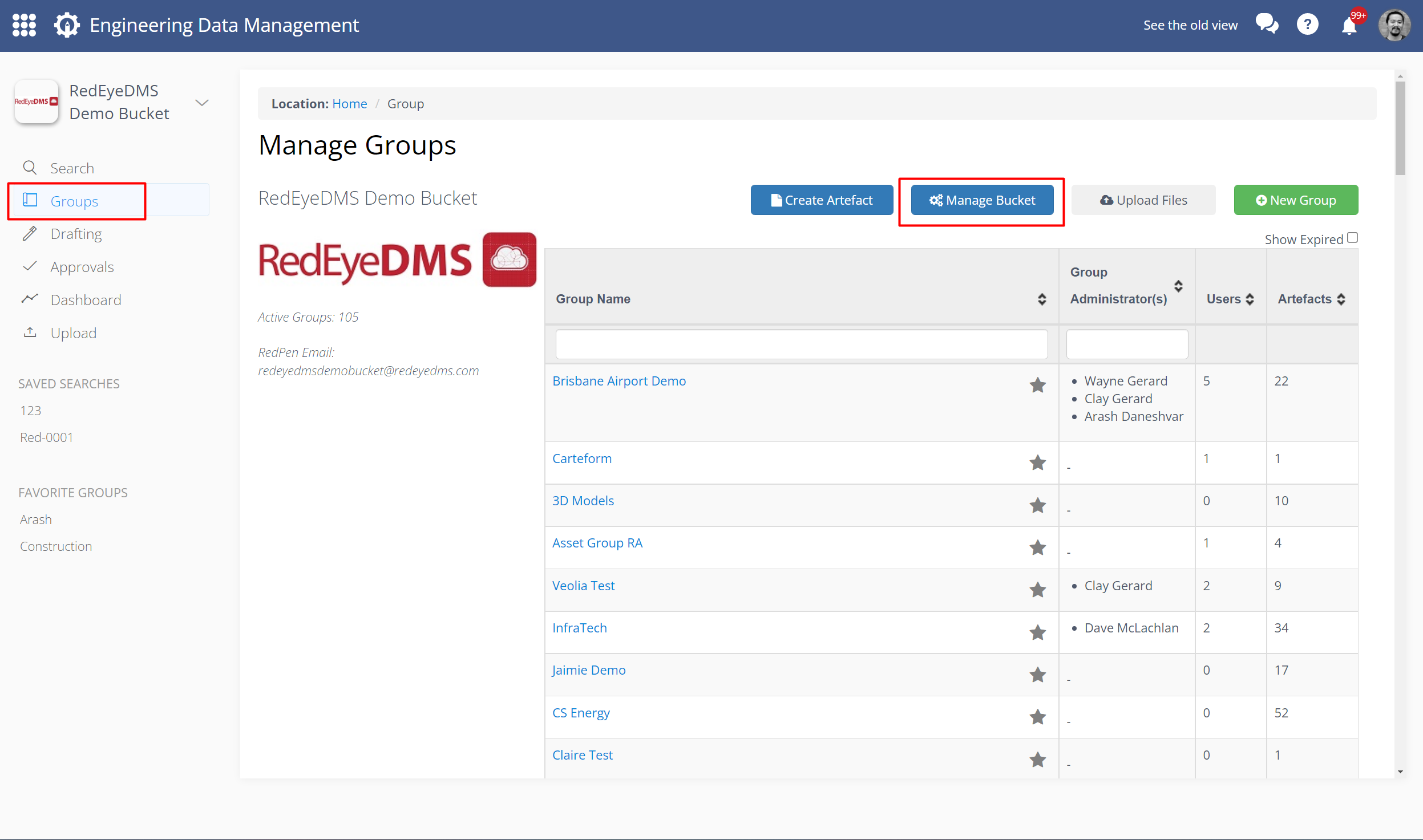
Alternatively, click Groups from the navigation bar, and then select Manage Bucket.
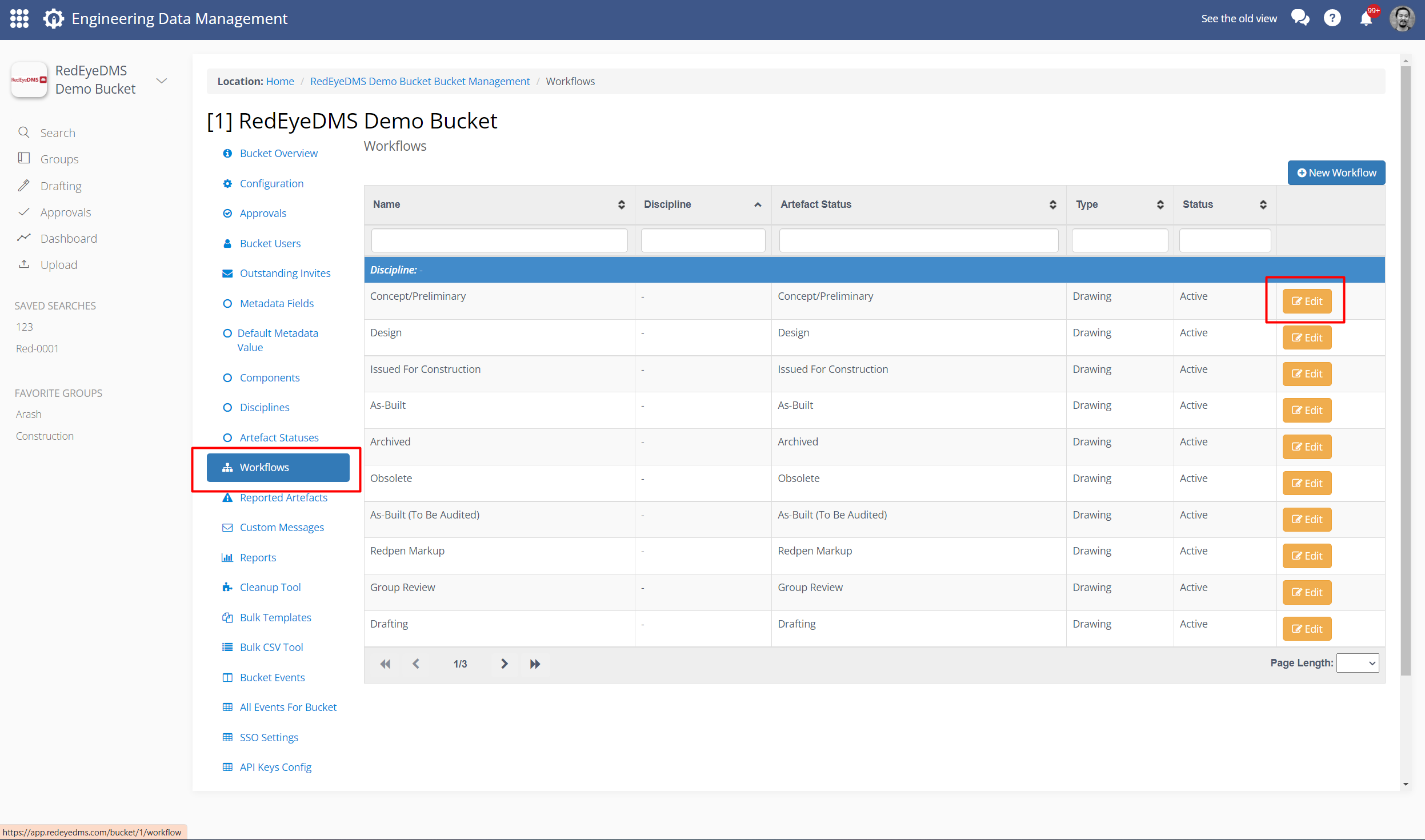
Next, select Workflows from the side bar. Now you can select a Workflow to Edit.
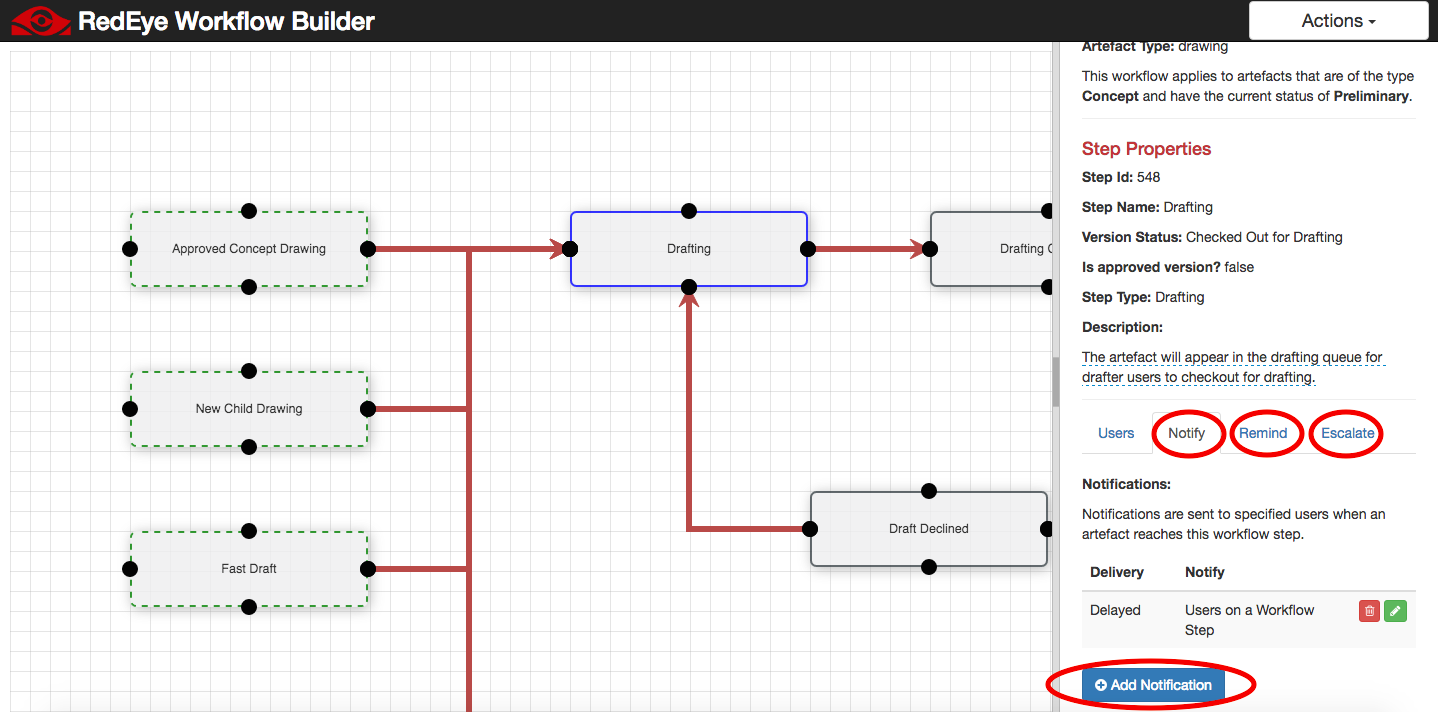
Select a Workflow Step from the Diagram. On the right side, there will be a panel of options. Select to add Users or Permissions (Group Roles) from the Users tab.
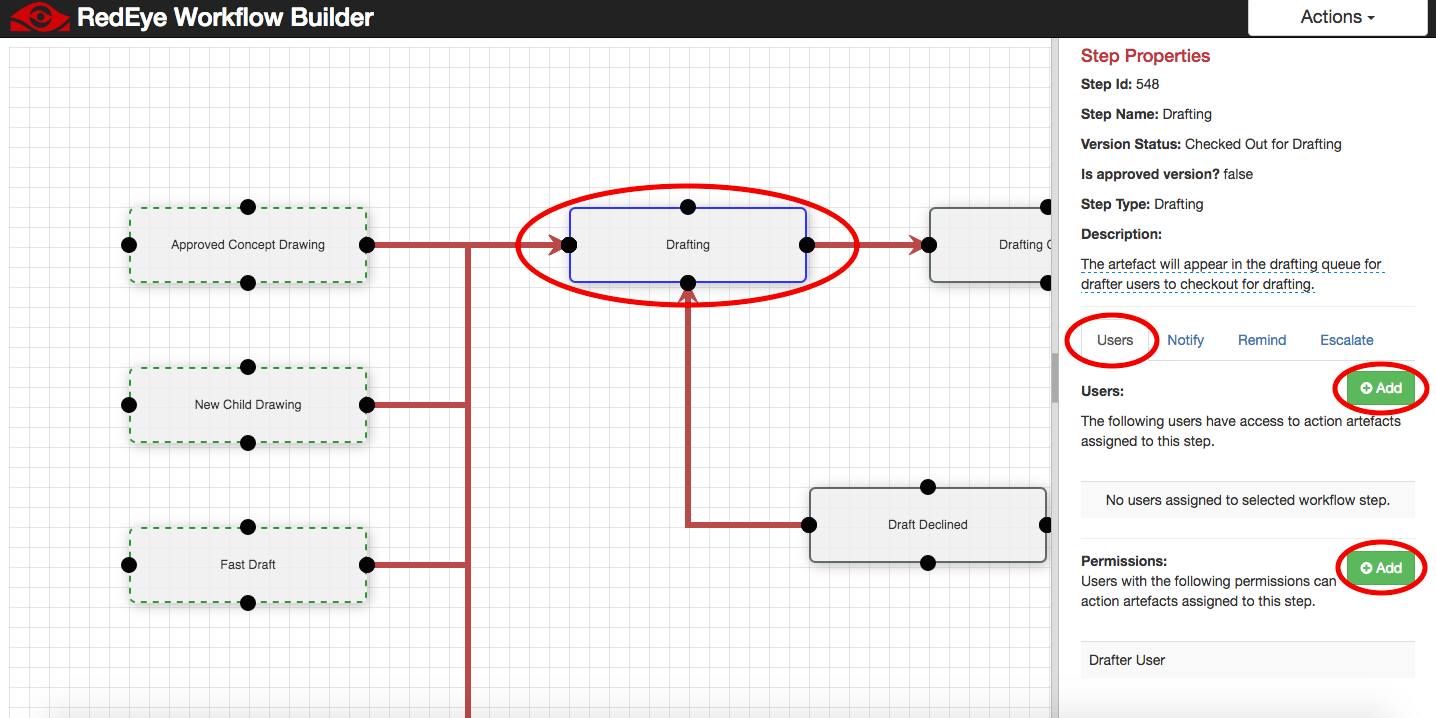
Next, select the Notify, Remind, and/or Escalate tabs to configure notifications.
Arrows
When you join steps with arrows, you can choose from the following options:
-
Forwards: Creates a single path to the next step.
-
Backwards: Connects a decision step's negative outcome to the next step. Use this only to link the first step after a negative branch.
-
Forward step option: Allows multiple forward paths from a single step. Use this only to connect from review/approval steps.
-
Backward step option: Allows multiple backward paths from a single step. Use this only to connect from review/approval steps.
Permissions
You can choose to assign specific Users, Group Roles*, or both to each workflow step.
-
Users: Specify one or more individual users who can action this workflow step.
-
Group Role*: All users with a specified Group Role can action this workflow step. If the drawing is in multiple groups, then all users with this role in any of the associated groups will have permission to action the workflow step.
* Assigning user roles to workflow steps requires RedEye Super Admin right. Please contact your Customer Success Team to make those changes.
Automated Notifications
You can choose to enable three types of notices.
Notifications: An email and notification sent to the specified Users, and/or all users with a suitable
Group Role to complete the action. These notifications can be sent:
-
Instant: The notice is sent immediately when the artefact progresses to the workflow step.
-
Delayed: The notice is sent on the hour, collating all artefacts that are waiting for the users attention since the last notification was sent.
-
Daily: The notice is sent at end of day, collating all artefacts that are waiting for the users attention since the last notification was sent.
Reminders: An email and notification sent to the specified users, and users with a suitable group
role to complete the action. These notices are set to be distributed if the artefact has not been
actioned after a specified number of hours.
Escalations: A specified user can be selected to receive escalations, such as a next level manager. These notices are set to be distributed if the artefact has not been actioned after a specified number of days.